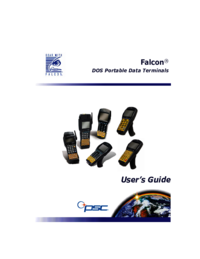
PSC FALCON 315 Uživatelská příručka
Procházejte online nebo si stáhněte Uživatelská příručka pro Čtečky čárových kódů PSC FALCON 315. PSC FALCON 315 User`s guide Uživatelská příručka
- Strana / 138
- Tabulka s obsahem
- KNIHY


- PowerNet 1
- Twin Client 1
- CONTENTS 3
- PowerNet Twin 7
- Client Emulator 7
- What is PowerNet Twin Client 9
- Getting Started 11
- Installation 13
- Starting PowerNet Twin Client 16
- Figure 1-1 17
- Start Screen 17
- PowerNet Twin Client 17
- (C) 1991-1998, Connect 17
- Press Any Key to Continue 17
- Edit Host List 19
- Edit Authorization 20
- Running Emulator 22
- Viewport Panning 23
- Configuration Utility 25
- Figure 2-1 27
- Table 2-1 28
- Default VT100 28
- Available Values 28
- Figure 2-2 29
- Figure 2-3 30
- Figure 2-4 32
- Auto Send Key 33
- Key Click 33
- Case Conversion 33
- The Display Tab 35
- Lock Column 37
- Scroll Mode 37
- Mapping Object 39
- Dialog Object 39
- Formatter Object 39
- Double High 41
- Double Wide 41
- Reverse Video 41
- Wait Message 41
- Figure 2-9 42
- The Scanner Tab 43
- Figure 2-10 44
- Binary-128 45
- Data Mapping Object 45
- Data Editor Object 45
- The Log Levels Tab 46
- Figure 2-11 47
- Figure 2-12 48
- AP Polling Options Group 49
- The Alarm Tab 51
- Duration 53
- Frequency 53
- Scan Duration 53
- Scan Frequency 53
- Figure 2-15 54
- Init Object 55
- The Misc Tab 56
- CTRL-E) 57
- Load New Configuration 58
- Advanced 59
- Keyboard Options 59
- Keyboard Macros 61
- Advanced Keyboard Options 62
- Figure 3-1 63
- Keyboard Mapping 65
- Display Options 67
- 0xa5=0x9d,xlat; 69
- 0xa4=0x9b,xlat; 69
- Advanced Display Options 70
- Scanner Options 71
- Advanced Scanner Options 74
- Figure 5-1 75
- Build Data Editor Object File 77
- Decoder Control Object 78
- Extended Commands 79
- Input Mode 82
- Input Validation 83
- Double High/Wide 84
- Beeper Control 85
- Video Attributes 86
- Screen Capture Utility 87
- Start Screen Capture 89
- Identify Terminal Host 90
- Figure 7-1 91
- Capture Screens 92
- Starting the Screen Formatter 95
- Figure 8-1 96
- Screen Formatting Concepts 97
- Screen Elements 97
- Screen Formatter Environment 98
- Figure 8-2 99
- Figure 8-3 Screen Formatter 100
- Mark Screen Elements 101
- Screen Formatter Utility 102
- Figure 8-5 103
- Build Terminal Screen 104
- Figure 8-6 105
- After Reformatting 106
- APPENDIX A: 107
- Model VT 109
- Models 3270/5250 110
- APPENDIX B: 111
- Table B-2 116
- APPENDIX C: 117
- Table C-2 122
- APPENDIX D: 123
- Table D-2 128
- 00-649-00 138
Shrnutí obsahu
PowerNetTwin Client™Terminal Emulation for Falcon RF ™User’s Guide
Screen Formatter Utility< 8-8 > PowerNet Twin Client User GuideSpecify Screen IdentifierSpecify a Screen Identifier for each screen snapshot. Th
Using PowerNet Twin Client Screen FormatterPowerNet Twin Client User Guide < 8-9 >Mark Screen ElementsAfter specifying the Screen Identifier, ma
Screen Formatter Utility< 8-10 > PowerNet Twin Client User Guide2. Right-click on the highlighted text and select Add Input Field.wwww After sel
Using PowerNet Twin Client Screen FormatterPowerNet Twin Client User Guide < 8-11 >4. Right-click on the highlighted text and select Add Display
Screen Formatter Utility< 8-12 > PowerNet Twin Client User GuideBuild Terminal ScreenOnce the screen identifier has been set, mark the Input and
Using PowerNet Twin Client Screen FormatterPowerNet Twin Client User Guide < 8-13 >10. Highlight the row that contains both the OnHand Display T
Screen Formatter Utility< 8-14 > PowerNet Twin Client User Guide15. Click and hold the highlighted selection. Drag the selection to the sixth ro
APPENDIX A:Keyboard Maps for thePSC Falcon 315APPENDIX CONTENTSModel VT... <A-iii>Models 3
Model VTPowerNet Twin Client User’s Guide < A-iii >Model VTTable A-1Model VTBase Alpha FN 1 FN 2 Caps Ctrl AltEsc Esc Esc Esc Esc Esc EscUp a To
1Getting StartedCHAPTER CONTENTSInstallation...<1-3>Loading Default PowerNet Twin Client on
< A-iv > PowerNet Twin Client User’s GuideModels 3270/5250Table A-2Models 3270/5250Base Alpha FN 1 FN 2 Caps Ctrl Alt Alpha+Alt Fn1+AltEsc Esc E
APPENDIX B:Keyboard Maps for thePSC Falcon 325APPENDIX CONTENTSModel VT... <B-iii>Models 3
Model VTPowerNet Twin Client User’s Guide < B-iii >Model VTTable B-1Model VTBase Cap Ctrl Alt Fn IntlF1 F1 F11 F6 F11F2 F2 F12 F7 F12F3 F3 F13 F
< B-iv > PowerNet Twin Client User’s Guidel L >m M (n N )o O #p P ;q Q [r R ]s St T Insertu U %v V “w W {x X End Pos. } End Pos.y Yz ZTable B
Models 3270/5250PowerNet Twin Client User’s Guide < B-v >Models 3270/5250Table B-2Models 3270/5250Base Caps Ctrl Alt Fn IntlF1 F1 F11 F6 F11F2 F
< B-vi > PowerNet Twin Client User’s Guidel L > M3m M ( Homen N ) Field -o O # Field +p P ; ErEOFq Q [ ErlNPr R ] Resets S SysReqt T Insert C
APPENDIX C:Keyboard Maps for thePSC Falcon 335APPENDIX CONTENTSModel VT... <C-iii>Models 3
Model VTPowerNet Twin Client User’s Guide < C-iii >Model VTTable C-1Model VTBase Cap Ctrl Alt FnF1 F1 F11 F6F2 F2 F12 F7F3 F3 F13 F8F4 F4 F14 F9
< C-iv > PowerNet Twin Client User’s Guideq Q ?r R _s S :t T Insert ;u U %v V &w W *x X End Pos. “y Y .z Z ,Intl maps to the same keys as Al
Models 3270/5250PowerNet Twin Client User’s Guide < C-v >Models 3270/5250Table C-2Models 3270/5250Base Caps Ctrl Alt FnF1 F1 F11 F6F2 F2 F12 F7F
< C-vi > PowerNet Twin Client User’s Guideq Q ERINP ?r R Reset _s S SysReq :t T Insert Clear ;u U Attention %v V End Pos &w W Help *x X Fiel
APPENDIX D:Keyboard Mapsfor the LXEAPPENDIX CONTENTSModel VT...<D-iii>Models 3270/5250 ..
Model VTPowerNet Twin Client User’s Guide < D-iii >Model VTTable D-1Model VTBase Shift Ctrl Alt 2ndF1 F11F2 F12F3 F13F4 F14F5 F15F6 F16F7 F17F8
< D-iv > PowerNet Twin Client User’s Guidef F Ctrl f ;g G Ctrl g “h H Ctrl h ‘i I Ctrl i *j J Ctrl j ,k K Ctrl k .l L Ctrl l ?m M Ctrl m _n N Ct
Models 3270/5250PowerNet Twin Client User’s Guide < D-v >Models 3270/5250Table D-2Models 3270/5250Base Shift Ctrl Alt 2ndF1 F11 F21F2 F12 F22F3
< D-vi > PowerNet Twin Client User’s Guidef F Ctrl f Field Mark ;g G Ctrl g “h H Ctrl h Help ‘i I Ctrl i Info *j J Ctrl j ,k K Ctrl k .l L Ctrl
PowerNet Twin Client User Guide < Index-i >AAdvanced buttonKeyboard Tab 2-10Advanced VTERM DisplayDisplay Tab 2-18Alarm Tab 2-27Allow Multiple 2
InstallationPowerNet Twin Client User Guide < 1-3 >InstallationTo install PowerNet Twin Client, insert the CD into the CD drive. Complete the fo
< Index- ii > PowerNet Twin Client User GuideQuadrant Mode 2-11Screen 2-11grayed out fields 2-7Host Servers 2-4Keyboard Tab 2-8Advanced button 2
PowerNet Twin Client User Guide < Index-iii >Reverse Video 2-17Row Count 2-17Screen 2-11Scroll Mode 2-13Source 2-16Wait Message 2-17Display Text
< Index- iv > PowerNet Twin Client User GuideModels 3270/5250 A-ivFalcon325Model VT B-iiiModels 3270/5250 B-vFalcon335Model VT C-iiiModels 3270/
PowerNet Twin Client User Guide < Index-v >OOperation Building Blocks 5-6OptionsCommunications Port 1-4Radio Type 1-4PPolling/Timers TabAlgorith
< Index- vi > PowerNet Twin Client User Guidesession settings screen 7-5starting 7-3target terminal 7-4Screen Elements 8-5Screen Formatter utili
PowerNet Twin Client User Guide < Index-vii >Case Configuration 2-9Double High/Wide 6-6Emulation 2-4Input Mode Parameters 6-4Input Validation 6-
Asia Pacific ItalyPSC Hong Kong PSC S.r.l.Hong Kong Vimercate (MI), ItalyTelephone: [852]-2-584-6210 Telephone: [39] (0) 39/62903.1Telefax: [852]-2-52
Getting Started< 1-4 > PowerNet Twin Client User GuideLoading Default PowerNet Twin Client on FalconThe next task is to load a basic PowerNet Tw
Loading Default PowerNet Twin Client on FalconPowerNet Twin Client User Guide < 1-5 >14. Perform a safe-boot of the terminal.wwww For Falcon 315
Getting Started< 1-6 > PowerNet Twin Client User GuideStarting PowerNet Twin ClientTo complete the installation process, perform a safe reboot t
Configure PowerNet Twin ClientPowerNet Twin Client User Guide < 1-7 >Configure PowerNet Twin ClientConfiguration MenuDo not bypass the Configura
Getting Started< 1-8 > PowerNet Twin Client User GuideEdit IPThe Edit IP option sets up the IP address for each Falcon.Complete the following st
Configure PowerNet Twin ClientPowerNet Twin Client User Guide < 1-9 >5. Press the <F3> key to save the IP settings and return to the Confi
PowerNet Twin Client User’s GuideSecond Edition ©2000All rights reserved. No part of this work may be reproduced, transmitted, or stored in any form o
Getting Started< 1-10 > PowerNet Twin Client User Guide5. Press the <F3> key to save the host settings and return to the Configuration Men
Configure PowerNet Twin ClientPowerNet Twin Client User Guide < 1-11 >3. Press the <F3> key to save the authorization code and return to t
Getting Started< 1-12 > PowerNet Twin Client User GuideRunning EmulatorAfter configuring the Falcon data terminal (IP Address, host list, and au
Viewport PanningPowerNet Twin Client User Guide < 1-13 >Viewport PanningIf a screen of text is larger than the terminal’s screen, it is still po
2Configuration UtilityThe PowerNet Twin Client Configuration utility sets up the PowerNet Twin Client application for Falcon terminals. The Configurat
Starting Configuration UtilityPowerNet Twin Client User Guide < 2-3 >Starting Configuration UtilityComplete the following steps:1. Verify that t
Configuration Utility< 2-4 > PowerNet Twin Client User GuideSet Emulation and ServersBefore configuring the PowerNet Twin Client emulator to wor
Set Emulation and ServersPowerNet Twin Client User Guide < 2-5 >1. From the Terminal menu, select Servers.2. Press the Add button.3. Enter a nam
PowerNet Twin Client User Guide < i >CONTENTSIntroduction: PowerNet Twin Client Emulator ... vWhat is PowerNet Twin Clie
Configuration Utility< 2-6 > PowerNet Twin Client User GuideNew-Environ SettingThe New Environ settings supports terminal scripting of the 3270
Configuring PowerNet Twin ClientPowerNet Twin Client User Guide < 2-7 >Configuring PowerNet Twin ClientPowerNet Twin Client can be operated with
Configuration Utility< 2-8 > PowerNet Twin Client User GuideThe Keyboard TabThe Keyboard Configuration Tab modifies how the keyboard interacts w
Configuring PowerNet Twin ClientPowerNet Twin Client User Guide < 2-9 >Auto Send KeyThe Auto Send Key automatically processes an entry when the
Configuration Utility< 2-10 > PowerNet Twin Client User GuideMapping ObjectThe Mapping Object links the keys on the Falcon to a specified termin
Configuring PowerNet Twin ClientPowerNet Twin Client User Guide < 2-11 >The Display TabThe Display Tab modifies how the Falcon display interacts
Configuration Utility< 2-12 > PowerNet Twin Client User Guidellll Select the mode from the Quadrant Mode pull-down list thatbest meets the insta
Configuring PowerNet Twin ClientPowerNet Twin Client User Guide < 2-13 >Lock ColumnIf the Lock Quadrant Mode was selected, define the column (co
Configuration Utility< 2-14 > PowerNet Twin Client User GuideLanguagePowerNet Twin Client supports several different languages. (Refer to Table
Configuring PowerNet Twin ClientPowerNet Twin Client User Guide < 2-15 >CursorPowerNet Twin Client can adjust the type of cursor that is display
< ii > PowerNet Twin Client User GuideChapter 3: Advanced Keyboard Options...3-1Keyboard Macros...
Configuration Utility< 2-16 > PowerNet Twin Client User Guidellll To apply a Formatter Object to a current configuration, selectthe appropriate
Configuring PowerNet Twin ClientPowerNet Twin Client User Guide < 2-17 >Row CountIt is possible to move multiple rows to a new destination. Begi
Configuration Utility< 2-18 > PowerNet Twin Client User Guideserver. Typically, this occurs when the data is already in use and the telnet sessi
Configuring PowerNet Twin ClientPowerNet Twin Client User Guide < 2-19 >Blink MaskThe Blink Mask selection determines how blinking video fields
Configuration Utility< 2-20 > PowerNet Twin Client User GuideIf the Truncation feature has been enabled, the Field Wrapping feature is disabled.
Configuring PowerNet Twin ClientPowerNet Twin Client User Guide < 2-21 >Binary-128The Binary-128 checkbox enables or disables the processing of
Configuration Utility< 2-22 > PowerNet Twin Client User GuideDecoder Control ObjectThe scanner of the Falcon can be controlled via the Decoder C
Configuring PowerNet Twin ClientPowerNet Twin Client User Guide < 2-23 >The Polling/Timers TabThe Polling/Timers Tab sets the parameters on how
Configuration Utility< 2-24 > PowerNet Twin Client User GuideTimers Options GroupRadioThe value, in clock ticks (1 tick = 55ms), that is entered
Configuring PowerNet Twin ClientPowerNet Twin Client User Guide < 2-25 >Increasing the Radio value will improve network performance, but will al
PowerNet Twin Client User Guide < iii >Chapter 8: Screen Formatter Utility...8-1Starting the Screen Formatter
Configuration Utility< 2-26 > PowerNet Twin Client User Guideinterval between polling increases and continues until such time as the maximum int
Configuring PowerNet Twin ClientPowerNet Twin Client User Guide < 2-27 >11 specifies the dynamic polling period. The default is 0 (zero).llll En
Configuration Utility< 2-28 > PowerNet Twin Client User GuideTable 2-11Mode ValuesDefault BellAvailable Values Bell: Enables the audible alarm a
Configuring PowerNet Twin ClientPowerNet Twin Client User Guide < 2-29 >VolumeThe Volume adjusts the volume value of the audible alarms.llll Sel
Configuration Utility< 2-30 > PowerNet Twin Client User GuideDefine a scan frequency value that is different from the value in the Frequency fie
Configuring PowerNet Twin ClientPowerNet Twin Client User Guide < 2-31 >TypeSelect a printer from the Type pull-down list.Init ObjectThe Init Ob
Configuration Utility< 2-32 > PowerNet Twin Client User GuideThe Misc TabThe Misc Tab includes miscellaneous configuration features for specific
Configuring PowerNet Twin ClientPowerNet Twin Client User Guide < 2-33 >Answerback (VT100, VT220, HP700 only)Note: AS400 hosts must check this f
Configuration Utility< 2-34 > PowerNet Twin Client User GuideLoad New ConfigurationAfter creating and saving the PowerNet Twin Client configurat
3AdvancedKeyboard OptionsPowerNet Twin Client provides several advanced keyboard options to assign custom macros to a specific Falcon key or remap a F
Keyboard MacrosPowerNet Twin Client User Guide < 3-3 >Keyboard MacrosPowerNet Twin Client can create and assign macros to the Falcon keyboard. T
Advanced Keyboard Options< 3-4 > PowerNet Twin Client User Guide5. When finished defining the macros, select Exit from the File menu.6. Press th
Keyboard MappingPowerNet Twin Client User Guide < 3-5 >Keyboard MappingThe PowerNet Twin Client Keyboard Mapping utility can add or modify the f
Advanced Keyboard Options< 3-6 > PowerNet Twin Client User GuideTable 3-2Transmission Mode ValuesDefault BlankAvailable Valueslocal: Handle the
Keyboard MappingPowerNet Twin Client User Guide < 3-7 >Define Keyboard Mapping ObjectComplete the following steps to map a Falcon key:1. Verify
4AdvancedDisplay OptionsPowerNet Twin Client can map the unsupported characters of the terminal server to the Falcon character set.CHAPTER CONTENTSDis
Display Mapping ObjectPowerNet Twin Client User Guide < 4-3 >Display Mapping ObjectThis feature is for experienced terminal system administrator
INTROPowerNet TwinClient Emulator
Advanced Display Options< 4-4 > PowerNet Twin Client User GuideBuild Display Mapping Object FileWhen building the Display Mapping Object file, c
5AdvancedScanner OptionsPowerNet Twin Client enables a system administrator to manipulate both the the Falcon’s scanner and the scanned data entry. Th
Data Mapping ObjectPowerNet Twin Client User Guide < 5-3 >Data Mapping ObjectThe PowerNet Twin Client Mapping Object can be utilized to send a k
Advanced Scanner Options< 5-4 > PowerNet Twin Client User GuideSave the PowerNet Twin Client configuration by selecting Save from the File menu.
Data Editor ObjectPowerNet Twin Client User Guide < 5-5 >Data Editor ObjectPowerNet Twin Client utilizes the data scanning sequence to edit the
Advanced Scanner Options< 5-6 > PowerNet Twin Client User GuideThe Recognition Building Blocks are illustrated in Table 5-1::The Operation Build
Data Editor ObjectPowerNet Twin Client User Guide < 5-7 >Build Data Editor Object FileBuild the Data Editor Object file by completing the follow
Advanced Scanner Options< 5-8 > PowerNet Twin Client User GuideDecoder Control ObjectPowerNet Twin Client controls the Falcon scanner from two s
6Extended CommandsThe host application can issue extended commands to the terminal. The extended command set is a superset of the standard VT100/VT220
Barcode Decoder Control Extended CommandsPowerNet Twin Client User Guide < 6-3 >Barcode Decoder Control Extended CommandsThese commands are sent
Extended Commands< 6-4 > PowerNet Twin Client User GuideInput ModeThe host application can control which inputs the terminal will accept. A scan
Input ValidationPowerNet Twin Client User Guide < 6-5 >Input ValidationInput validation is used to control the allowed data format for entered c
Extended Commands< 6-6 > PowerNet Twin Client User GuideDouble High/WideThis parameter is sent from the host to select double high, double wide
Beeper ControlPowerNet Twin Client User Guide < 6-7 >Beeper ControlThe beep duration and frequency, and the scan beep duration and frequency may
Extended Commands< 6-8 > PowerNet Twin Client User GuideVideo AttributesReverse video and blinking video attributes are supported using the stan
7Screen Capture UtilityThe Screen Capture utility builds a screen database. The Screen Formatter utility accesses this database of host application sc
Start Screen CapturePowerNet Twin Client User Guide < 7-3 >Start Screen CaptureBefore reformatting a terminal application’s screens, a database
PowerNet Twin Client User Guide < vii >What is PowerNet Twin ClientPowerNet Twin Client is a terminal emulation and screen formattingpackage. Th
Screen Capture Utility< 7-4 > PowerNet Twin Client User GuideIdentify Terminal HostAfter the Screen Capture utility has been started, configure
Identify Terminal HostPowerNet Twin Client User Guide < 7-5 >5. If necessary, specify the number of rows displayed on the terminal’s screen usin
Screen Capture Utility< 7-6 > PowerNet Twin Client User GuideCapture ScreensThe Screen Capture utility is an enhanced terminal emulator that cap
8Screen Formatter UtilityThe Screen Formatter reformats the host application screens to meet the display requirements of a Falcon terminal.CHAPTER CON
Starting the Screen FormatterPowerNet Twin Client User Guide < 8-3 >Starting the Screen FormatterComplete the following steps to start the Scree
Screen Formatter Utility< 8-4 > PowerNet Twin Client User GuideScreen Formatting ConceptsFormatting the host application’s display to meet the n
Screen Formatting ConceptsPowerNet Twin Client User Guide < 8-5 >Screen ElementsThe screen elements are the tools used to reformat the host appl
Screen Formatter Utility< 8-6 > PowerNet Twin Client User GuideScreen Formatter EnvironmentThe Screen Formatter supports the use of standard Win
Using PowerNet Twin Client Screen FormatterPowerNet Twin Client User Guide < 8-7 >Using PowerNet Twin Client Screen FormatterFigure 8-2 illustra
Další dokumenty pro Čtečky čárových kódů PSC FALCON 315

Související produkty a manuály pro Čtečky čárových kódů PSC FALCON 315
 (232 stránky)
(440 stránky)
(168 stránky)
(66 stránky)
(97 stránky)
(48 stránky)
(232 stránky)
(440 stránky)
(168 stránky)
(66 stránky)
(97 stránky)
(48 stránky)
 (116 stránky)
(480 stránky)
(88 stránky)
(100 stránky)
(200 stránky)
(76 stránky)
(116 stránky)
(480 stránky)
(88 stránky)
(100 stránky)
(200 stránky)
(76 stránky)
© 2020, manymanuals.cz. Všechna práva vyhrazena. | 0.044 s |
 Manymanuals.com
 Manymanuals.de
 Manymanuals.fr
 Manymanuals.it
 Manymanuals.pl
 Manymanuals.cz
 Manymanuals.es
 Manymanuals-pt.com
Komentáře k této Příručce